Search This Blog

Showing posts with label Sharepoint 2010 Issues. Show all posts

Wednesday, July 1, 2015

SharePoint 2010 User Active Directory Permissions not updating

When you are using Active Directory groups and add those groups into SharePoint groups, you will run into issues while modifying the members of the Active Directory group. It takes 24 hours (by default) to reflect this change to SharePoint.This behavior is controlled by a property called Token-timeout.By default, this value is set to 1440 minutes (24 hours) .
SharePoint fetches user token information from the SharePoint database. If the user has never visited the site or if the user�s token was generated more than 24 hours previously, SharePoint generates a new user token by trying to refresh the list of groups that the user belongs to.(MSDN Reference)

To check which values you currently have, try running the below:
 stsadm �o getproperty �propertyname token-timeout

If you want to minimize this token time out value (time it takes to refresh the token), follow the below instructions.

To set a valid time to 2000 minutes, use the following syntax:
stsadm -o setproperty -pn token-timeout -pv 2000
Note: You can substitute -pn for -propertyname and -pv for -propertyvalue. 
Name
Value
propertyname
Gets or sets the name of the property.
propertyvalue
A valid time interval, in minutes. The default setting is 1440 minutes.

The syntax for the setproperty operation is:
stsadm -o setproperty -propertyname token-timeout �propertyvalue <A valid time interval, in minutes>

Note:
- This property applies to the entire farm.

- The use of stsadm will only affect the ContentServiceWeb service property and not the AdministrationServiceWeb service property.

Warning: If you set Token-timeout to zero (0) it can bring the farm down and you get this error message
"The context has expired and can no longer be used. Exception from HRESULT: 0x80090317"


Monday, June 15, 2015

BDC The name �Domain\User Name� could not be resolved via Active Directory

Issue

When you work with SharePoint 2010 and BDC Service application when you try to create an External Content Type, you might come across this error. This is because the person who had created the Content type is not present in the Active Directory. He/she may have left your organization.


Resolution

1) Browse to Central Administration

2) Choose the BDC Service application. Make sure that this person is not listed as the administrator on the service application

3) Inside the BDC service application, select Set Metadata Store Permissions


4) The user listed in the error will be listed here.

5) Select the user and remove him/her.

6) Make sure that you select the checkbox that says - 
Propagate permissions to all BDC Models, External Systems and External Content Types in the BDC Metadata Store. Doing so will overwrite existing permissions.


7) Click OK

Wednesday, June 10, 2015

Error on deleting folder in SharePoint 2010 - The file is currently checked out or locked for editing by another user

Issue Description

Today I ran into an issue with the deleting a folder in a SharePoint 2010 document library. The folder was empty (viewed with admin account too), but could not be deleted. On clicking the delete button I got an error message

"The file is currently checked out or locked for editing by another user."


I tried all possible ways to delete it (Explorer mode, Datasheet Mode, Power Shell), but failed to do so.

Fix
1. Browse to Document library settings -> Manage files which have no checked in version


2. On this page I found there was a file under the folder I was trying to delete and this file was checked out to a 
user. Check for the folder name under the Location column and confirm it.

3. Take ownership of the document and check in or publish a major version for the document.


4. Delete the folder now. This will work ;-)

Wednesday, April 29, 2015

Unable to process the request . Wait a few minutes and try performing this operation again

Issue Description

Recently I came across this issue where some of the end users were getting an error message when they tried to open an Excel file in SharePoint in the browser.

Unable to process the request.
Wait a few minutes and try performing this operation again.

Unable to process the request 1

Cause

The Excel Services Application server computer is in a non-valid state and may need to be restarted.

Resolution

Most of the online articles were asking me to restart the Central Administration server.I did not want to do that and found a different fix.


Identify the application pool running the Excel Services service application (from IIS) and Recycle it.

1) Start �>Run �> inetmgr

2) Under the Sites click on SharePoint Web Services. This will list down the Services in SharePoint.

3) Click on each GUID �> Change the view from Features View to Content View

4) On finding ExcelService.asmx -> Right click that web service -> Manage Application -> Advanced Settings.

5) Identify the Application Pool (make a note of this).

6) Now in IIS �> Application Pools �> choose the Application Pool you noted down in previous step   -> Recycle (recycle the application pool).


Unable to process the request 2

Tuesday, April 28, 2015

Internal server error exception: System.NullReferenceException: Object reference not set to an instance of an object

Error Description

Recently I came across this error with SharePoint Search. I was searching in a SharePoint list and got the below error.
Error
Internal server error exception:
Troubleshoot issues with Microsoft SharePoint Foundation.

On checking the ULS logs I found the below entries

01/28/2015 10:59:51.10         w3wp.exe (0x31D8)                0x2030    SharePoint Server Search      Query      fm9a        Unexpected                CoreResultsWebPart::OnInit: Exception initializing: System.NullReferenceException: Object reference not set to an instance of an object.     at Microsoft.Office.Server.Search.WebControls.CoreResultsWebPart.SetPropertiesOnQueryReader()     at Microsoft.Office.Server.Search.WebControls.CoreResultsWebPart.OnInit(EventArgs e)               7001a8bf-b506-4096-b46b-003fbb5ec91b

01/28/2015 10:59:51.10         w3wp.exe (0x31D8)                0x2030    SharePoint Server Search      Query      g1j9         Exception                Internal server error exception: System.NullReferenceException: Object reference not set to an instance of an object.     at Microsoft.Office.Server.Search.WebControls.CoreResultsWebPart.SetPropertiesOnQueryReader()     at Microsoft.Office.Server.Search.WebControls.CoreResultsWebPart.OnInit(EventArgs e) System.NullReferenceException: Object reference not set to an instance of an object.     at Microsoft.Office.Server.Search.WebControls.CoreResultsWebPart.SetPropertiesOnQueryReader()     at Microsoft.Office.Server.Search.WebControls.CoreResultsWebPart.OnInit(EventArgs e)               7001a8bf-b506-4096-b46b-003fbb5ec91b


01/28/2015 10:59:51.10         w3wp.exe (0x31D8)                0x2030    SharePoint Server  Unified Logging Service       c91s        Monitorable                Watson bucket parameters: SharePoint Server 2010, ULSException14, 06175311 "sharepoint server search", 0e001b67 "14.0.7015.0", 17853a8f "microsoft.office.server.search", 0e001bd1 "14.0.7121.0", 531f1826 "tue mar 11 10:05:26 2014", 000032a4 "000032a4", 0000002d "0000002d", 4a6d3421 "nullreferenceexception", 67316a39 "g1j9"    7001a8bf-b506-4096-b46b-003fbb5ec91b


Solution 1

If you go into Central Administration -> System Settings -> Manage Services on Server. Make sure the below services are started.

- SharePoint Server Search
- Search Query and Site Settings Service

Solution 2

Click through all the Search Administration pages in Central Admin.Click through all the Search Administration pages in Central Admin. Now perform the search again. The issue should have disappeared.


Solution 3

Identify the underlying application pool for search (Reference)
Perform an application pool recycle

Tuesday, April 14, 2015

SharePoint 2010 Error Message : The current page has been customized from its template. Revert to template

Error Description

Recently I noticed that there was message like this on a SharePoint site Home Page.

The current page has been customized from its template. Revert to template


The below steps hides this message and is not a fix

1. Edit the page in browser and then click on Add webpart, from media and content webpart select Content Editor webpart.

2. Then in the content editor web part Click on "Click here to add new content" to edit the contents of the web part.

3. In the Ribbon, go to the Format Text section, select HTML in the Markup group, and choose HTML Source.

4. Now paste the below code and save the page.

<style type="text/css">
    body #pageStatusBar{height:0px; font-size:0px; padding:0px; border-style:none;}
</style>

Friday, April 10, 2015

"Your local machine time zone does not match your current SharePoint regional setting" warning message in an Access web database in a SharePoint site

Error Description

When you open a Microsoft Access web database in a SharePoint site, you receive the following warning message: �Your local machine time zone does not match your current SharePoint regional setting. Operations involving dates will not work correctly�


Cause

This problem occurs because a different time zone is used in the regional settings of Windows and the SharePoint server.

Fix

To resolve this problem, follow these steps.
1. Identify the time zone setting in the SharePoint site to which the Access web database is published. To do this, follow these steps:

a. At the top of the SharePoint site, click the arrow next to Welcome <User name>, and then click My Settings.
b. On the User Information page, click My Regional Settings.
c. In the Follow Web Settings section of the Regional Settings page, make sure that the Always follow web settings check box is selected.
d. Check the Time Zone setting.

2. Set Windows and the SharePoint server to the same time zone. To do this, follow these steps:

a. Click Start, click Control Panel, and then open the Date and Time item.
b. In the Date and Time item, click Change time zone, and then select the time zone that is used by the SharePoint site.

Thursday, April 9, 2015

SharePoint 2010: Event 7043 "Load control template file /_controltemplates/TaxonomyPicker.ascx failed"

Error Description

You install Microsoft SharePoint 2010 RTM on Windows 2008 R2, you receive the following error message multiple times in the application event log:

Event Type: Error
Event Source: SharePoint Foundation
Event Category: None
Event ID: 7043
Computer: SERVERNAME
Description: Load control template file /_controltemplates/TaxonomyPicker.ascx failed: Could not load type 'Microsoft.SharePoint.Portal.WebControls.TaxonomyPicker' from assembly 'Microsoft.SharePoint.Portal, Version=14.0.0.0, Culture=neutral, PublicKeyToken=71e9bce111e9429c'.


Error Cause

The ULS log is created in a code path where all control templates are loaded into the web application. This is a one-time process which happens just before showing any UI to the user after an IISReset.The source of the problem looks like a stale control template in the control templates folder while the control itself has been removed from the code base.

Fix

This is not causing any issues except for a wrong ULS log message a single time in a web application process life time, the exception is caught and that template file is skipped. This message should be treated as log noise and can be ignored.
1. Navigate to /14/TEMPLATE/ControlTemplates/TaxonomyPicker.ascx user control
2. Open the user control in a text editor and locate the first line
3. Find the character string &#44; and replace with a comma �,� (without quotes).
4. Save the user control


Tuesday, April 7, 2015

SharePoint Solution deployment stuck on deploying

Problem description

I was deploying the solution in our production environment and faced some strange issue.The status never changes from deploying.

Fix

1.  Log on to all the SharePoint servers in the farm -> Start -> Run -> services.msc 


2.   Check for SharePoint Timer service and make sure it�s in started mode. (This service should be started on all the web servers  as well as application server)

Tuesday, March 10, 2015

SharePoint 2010 User Profile Synchronization connection missing

Issue Description

Last week, while I was checking the User Profile Settings in my Sharepoint 2010 farm and I noticed that on browsing to

User Profile Service Application -> Synchronization -> Configure Synchronization Connections 
-> My Synchronization Connection was empty.

I swear I have that it was always there, but below is the error message I saw

The query returns nothing.


Resolution

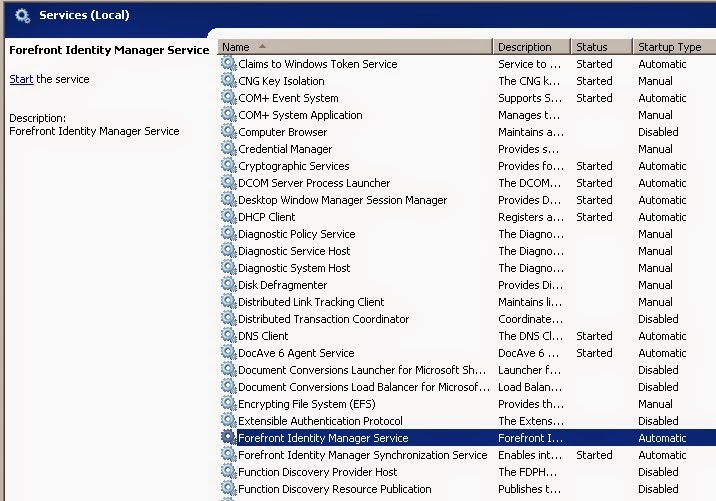
1. Go to Run -> services.msc

2. I checked for the service Forefront Identity Manager Services. It was not in Started state


3. Right click and Start it.


This should fix the issue.The Synchronization Connection should show up now


Wednesday, February 4, 2015

An unexpected error has occurred when trying to create an Enterprise Search Center in SharePoint 2010

Issue Description

I tried to create a SharePoint Search Center with site template as Enterprise Search Center within a site collection in SharePoint 2010 and got the below error.


Reason

The SharePoint Server Publishing Infrastructure feature must be activated at the site collection level before creating a site with Enterprise Search Center template.

Resolution

So the next step was to enable the Publishing Infrastructure feature.
1) Go to Site Actions -> Site Settings -> Site collection features -> SharePoint Server Publishing Infrastructure

2) Click on Activate


Wednesday, January 28, 2015

User Name is displaying incorrectly in SharePoint

Issue Description

A user's display name is incorrect on a SharePoint site .A user in your organization has recently updated some of his or her information (such as the user's display name) in Active Directory Domain Services. The information was updated correctly in the user Profile Service Application. However, on a specific Microsoft SharePoint 2010 Site Collection, that information was not updated.

Cause

The user is not synchronizing correctly to a Site Collection. This most likely occurs because the user is not flagged as Active on the Site. In Microsoft Office SharePoint 2007, you could remove the user from the All People group and re-add them. This option is no longer available in SharePoint 2010.

Resolution

In simple words � Note the permission of the user in the site. Remove the user from the site and add again. Detailed explanation is below

Important: If you remove the user from the All People group, all the user's permissions to this Site Collection are removed. Before you remove the user's permissions and re-add them, note the user's permissions. To do this, on the Site Actions menu, click Site Permissions, and then click Check Permissions.
The All People group is hidden in SharePoint 2010. However, to access this group, you can modify the following 

URL in the browser:
<Site URL>/_layouts/people.aspx?MembershipGroupId=0

For example, the URL will resemble the following:
https://contoso.com/sites/<SpecificSiteName>/_layouts/people.aspx?MembershipGroupId=0

If you remove the user from this group, this also removes the user from the userInfo table in the Microsoft SQL Server database. When you re-add the user, the user's information is updated in this table.

Tuesday, November 25, 2014

ULS log Event ID 5240 �There was an error in communicating with Excel Calculation Services�

Issue Description

Recently I came across this issue where some of the end users were getting an error message when they tried to open an Excel file in SharePoint in the browser.

Unable to process the request.
Wait a few minutes and try performing this operation again.


- On checking the ULS logs I got the below error message.
ULS log Event ID 5240 �There was an error in communicating with Excel Calculation Services�

- On checking the Event Viewer on the server , there was the below error.
Event 2159, SharePoint Server
Event 5240 (Excel Services Application) of severity Error occurred 20 more time(s) and was suppressed in the event log


Cause

The Excel Services Application server computer is in a non-valid state and may need to be restarted.

Resolution

Most of the online articles were asking me to restart the Central Administration server.I did not want to do that and found a different fix.


Identify the application pool running the Excel Services service application (from IIS) and Recycle it.

1) Start �>Run �> inetmgr

2) Under the Sitesclick on SharePoint Web Services. This will list down the Services in SharePoint.

3) Click on each GUID �> Change the view from Features View to Content View

4) On finding ExcelService.asmx-> Right click that web service -> Manage Application -> Advanced Settings.

5) Identify the Application Pool (make a note of this).

6) Now in IIS�> Application Pools �> choose the Application Pool you noted down in previous step   -> Recycle (recycle the application pool).


Wednesday, November 19, 2014

Deleting a SharePoint list through PowerShell

When SharePoint lists are corrupted and you are unable to delete them from UI, you can delete them from SharePoint PowerShell. If you want to force delete a SharePoint list using PowerShell, open SharePoint Management shell and run the below commands:

$web = Get-SPWeb -Identity http://sitename
$list = $web.Lists["corrupted list name"]
$list.AllowDeletion = $true
$list.Update()
$list.Delete()

Wednesday, October 22, 2014

SharePoint 2010 .htm files prompts user to download the file

Issue Description
When the user click on a .htm file in SharePoint site , user will be prompted to save the file rather than the file opening in the browser.

Solution
1) Open Central Administration -> Manage web applications -> Select web application -> General Settings

2) Web Application General Settings -> Browser File Handling ->Strict. Change this to Permissive


Workaround

Rename your files with .aspx extension (*.aspx)

Wednesday, September 3, 2014

AD Groups not displayed in SharePoint People Picker

Issue description
A user had created and Active Directory group and was not able to see the group in SharePoint People Picker
SharePoint version: SharePoint 2010 SP2

Cause                                                                                                                                             
The Active Directory group was created as a Distribution group

Resolution                                                                                                                                   
Active Directory groups should be a created as Security group (not Distributiongroup) to get listed in SharePoint People Picker.


Distribution groups cannot be used as security instances, such as assigning permissions to them. SharePoint uses Active Directory to authenticate a user. In order to do this, it must be a security principle that SharePoint is working with. Distribution groups are not security principles. 

Restore-SPSite : The content type text/html; charset=utf-8 of the response message does not match the content type of the binding (application/soap+msbin1). If using a custom encoder, be sure that the IsContentTypeSupported method is implemented properly

Issue Description
I had recently come across this error while trying to restore a SharePoint 2010 site.

Restore-SPSite : The content type text/html; charset=utf-8 of the response message does not match the content type of the binding (application/soap+msbin1). If using a custom encoder, be sure that the IsContentTypeSupported method is implemented properly

Cause
This could be because there is some error on your web.config files.

Resolution

Check the below web.config files 
1) Central administration
2) Specific SharePoint Web application
3) Security Token Service

1) Make sure that there are no spaces in the web.config file
2) There should not be duplicate nodes
3) Make sure all nodes are entered properly in the web.config files (especially when you are working with forms based configuration).
Propellerads