Search This Blog

Showing posts with label Sharepoint-SQL. Show all posts

Wednesday, March 25, 2015

For more information about this error navigate to the report server on the local server machine, or enable remote errors

Issue Description

I was getting the below error on a SharePoint page which had SQL Server Reporting Services Report Viewer web part on it
For more information about this error navigate to the report server on the local server machine, or enable remote errors

Fix

Enable Remote Errors for a SharePoint Site

1. In Site Actions click Site Settings for the site you want to modify.
2. Click Reporting Services Site Settings in the Reporting Services group.
3. Click Enable remote errors in local mode.
4. Click OK.

Friday, August 22, 2014

Difference between Integrated Security = True or SSPI

Guys,

I am pretty sure that when we work with connection strings we would have come across this multiple times. 

"Persist Security Info=False;Integrated Security=true;Initial Catalog=Northwind;server=(local)"

Below is an explanation:

Integrated Security -or- Trusted_Connection (Default value = 'false')

1. When false, User ID and Password are specified in the connection.

2. When true, the current Windows account credentials are used for authentication.

3. Recognized values are true, false, yes, no, and sspi (strongly recommended), which is equivalent to true.

4. If User ID and Password are specified and Integrated Security is set to true, the User ID and Password will be ignored and Integrated Security will be used.


Exception - With an OLE DB (non SQL) connection:

1. Integrated Security is not equivalent to Trusted_Security.

2. TRUE and YES are not the same as SSPI.


To use Windows authentication with OLE DB, one must use "Integrated Security=SSPI". 
Using TRUE or YES for this value does not work. 
Using Trusted_Connection with any value does not work.

Difference between ODBC and OLE DB data sources

In this post I want to explain the difference between ODBC and OLE DB.This is what I found based on my reading on the web and my understanding.

1) ODBC provides access only to relational databases

2) OLE DB provides the following features:
a) Access to data regardless of its format or location
b) Full access to ODBC data sources and ODBC drivers

In simple words, ODBC is used only for SQL based data sources whereas OLE DB is used for both SQL and non SQL data sources.I have put in a diagram also below. That might explain it better.


Connection strings for Analysis Services (SSAS) or OLAP

When you work with SharePoint and you want to establish connection with Analysis Services (SSAS) or Cubes you would need to generate connection strings to connect to the Data Source. Some sample connection strings are below: 

Standard

Data Source=myServerAddress;Catalog=myDataBase;

Encrypted Connection
This one authenticates the user and encrypts the communication. This is the highest level of security.

Data Source=myServerAddress;Catalog=myDataBase;ProtectionLevel=PktPrivacy;

Signed Connection
This one authenticates the user and prevents the content in the communication to be modified.

Data Source=myServerAddress;Catalog=myDataBase;ProtectionLevel=PktIntegrity;

Authenticated Connection
This one authenticates the user but does not secure the communication.

Data Source=myServerAddress;Catalog=myDataBase;ProtectionLevel=Connect;


Friday, December 13, 2013

SharePoint 2013 Site Collection | HTTP 404 error intermittently

Problem Description

Recently I came across a weird issue, a site collection in the SharePoint farm was giving HTTP 404 intermittently. My initial thought was maybe the whole web application had the issue but didn�t see this happening with any other site collections on the same web application. And I got this error only 1 out of 10 times. But another user seemed to have got it from the first try itself. It really baffled me for couple of hours. So I did an IIS reset and even restarted the SharePoint timer service on the SharePoint web front ends. That didn�t seem to help either.


Resolution

At some point, I realized that this was a site collection specific issue. This site collection had its own dedicated database. I had to detach and attach the content database of this site collection from the web application using Powershell(read dismount and mount)to resolve this issue.

Few weeks back I had done a detach/attach of the same content database from Central Administration. I think performing dismount and mount from Central Administration console led to this behavior. I still find this weird though.

P.S.: Please make a note of the Content DB name before you start this operation

Dismount-SPContentDatabase"<ContentDBName>"

Mount-SPContentDatabase"< ContentDBName >" -DatabaseServer"<DBServerNAme>" -WebApplicationhttp://SiteName


Tuesday, October 29, 2013

PivotTable Operation Failed: We cannot locate a server to load the workbook Data Model

While creating a demo with PowerPivot (Excel Services) on SharePoint 2013, I came across this error.

PivotTable Operation Failed: We cannot locate a server to load the workbook Data Model


Cause

The Analysis Services instance has not been configured in the Central Administration site or Analysis Services needs to be restarted

Resolution

Solution 1

You can also make sure that the steps displayed here are followed. In my case this was already done. But I am still listing it down.To work around this issue, configure the Excel Services service application on the SharePoint server. To do this, follow these steps:

1. In the Application Management section of the Central Administration home page, click Manage service applications.
2. On the Manage Service Applications page, click the Excel Services service application that you want to configure.
3. On the Manage Excel Services page, click Data Model.
4. Click Add Server.
5. In the Server Name box, type the name of the Analysis Services instance that you want to add.
6. Click Ok.

Solution 2

I restarted the SQL Server Analysis Services (POWERPIVOT) service on SQL Server Configuration Manager. That fixed the issue for me. If that didn�t help try an IISRESET.

SQL Server Configuration Manager - Connection to target machine could not be made in a timely fashion

Yesterday I had to stop the SQL Server Analysis Services (POWERPIVOT) service on SQL Server Configuration Manager (the idea was to restart the service). After this, I was getting the below error when I tried to open the SQL Server Configuration Manager.

---------------------------
SQL Server Configuration Manager
---------------------------
Connection to target machine could not be made in a timely fashion.
---------------------------
OK  
---------------------------


I waited for 30 minutes and the error was not going off. After 30 minutes, the status showed Stopped (Pending Changes) in SQL Server Configuration Manager. But when I opened Service page (services.msc) ,the same service SQL Server Analysis Services (POWERPIVOT) was still in Stopping state

Resolution

I restarted the server and things changed back to normal

Thursday, October 24, 2013

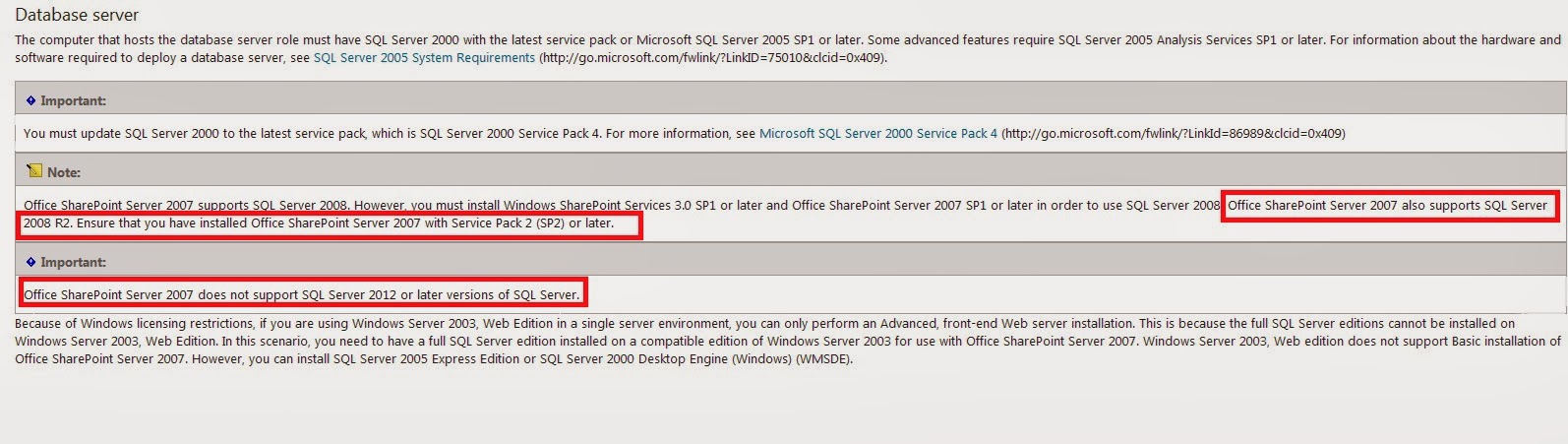
SharePoint 2007 compatibility with SQLServer

Office SharePoint Server 2007 is compatible with

- SQL Server 2000 with the latest service pack (which is SQL Server 2000 Service Pack 4)

- Microsoft SQL Server 2005 SP1 or later

Office SharePoint Server 2007 SP1 is compatible with

- SQL Server 2008

Office SharePoint Server 2007 SP2 is compatible with

- SQL Server 2008 R2

 But Office SharePoint Server 2007 is not compatible with SQL Server 2012

Key Excerpts

Office SharePoint Server 2007 also supports SQL Server 2008 R2. Ensure that you have installed Office SharePoint Server 2007 with Service Pack 2 (SP2) or later.


Office SharePoint Server 2007 does not support SQL Server 2012 or later versions of SQL Server.


Reference
Propellerads