Search This Blog

Wednesday, February 4, 2015

Error - �The given key was not present in the dictionary."

PowerShell command to delete the query suggestion automatically added by SharePoint(suggestions are automatically built based on what search results are actually clicked on. It takes 6 clicks within a year for SharePoint to add a suggestion)), returns an error

Remove-SPEnterpriseSearchLanguageResourcePhrase -SearchApplication "SharePoint Server Search" -Language En-Us -Type QuerySuggestionAlwaysSuggest -Identity "ford"

Remove-SPEnterpriseSearchLanguageResourcePhrase : The given key was not present in the dictionary.
At line:1 char:48 + Remove-SPEnterpriseSearchLanguageResourcePhrase <<<<  -SearchApplication "SharePoint Server Search" -Language En-Us -Type QuerySuggestionAlwaysSuggest -Identity ford
    + CategoryInfo          : InvalidData: (Microsoft.Offic...eResourcePhrase:   RemoveSearchLanguageResourcePhrase) [Remove-SPEnterp...eResourcePhrase], KeyNotFoundException
    + FullyQualifiedErrorId : Microsoft.Office.Server.Search.Cmdlet.RemoveSearchLanguageResourcePhrase


I could not find a way to remove a query suggestion added by SharePoint. Maybe it is a bug. But we do have an option to block them. This way we can stop them from appearing on the search box.

To block the query suggestion "ford"

New-SPEnterpriseSearchLanguageResourcePhrase -SearchApplication $SearchApp -Language en-us -Type QuerySuggestionBlockList -Name �ford�
Start-SPTimerJob -Identity �Prepare query suggestions�


To unblock the Query Suggestions "ford"

Remove-SPEnterpriseSearchLanguageResourcePhrase -SearchApplication $SearchApp -Language en-Us -Type QuerySuggestionBlockList -Identity �ford�
Start-SPTimerJob -Identity �Prepare query suggestions�

To view the list of blocked Query Suggestions

Get-SPEnterpriseSearchLanguageResourcePhrase �SearchApplication "SharePoint Server Search" -Language en-us -Type QuerySuggestionBlockList

WARNING: column "Mapping" does not fit into the display and was removed.

Phrase               Type                                        Culture    Author
------               ----                                             -------       ------

ford                 QuerySuggestionBlockList            en-US      domain\user


How to Sync SharePoint Contacts with Outlook

1) Browse to SharePoint site.

2) Go to Site Actions -> More Options� Create ->Select Contacts template.

3) Create the Contacts lists and enter the data there.

4) Next steps ->List Tools -> List -> Connect to Outlook -> Click Allow -> Click Allow


5) This will Sync the SharePoint contacts with Outlook.
6) Now open Outlook -> Contacts. The Contacts would be listed there.

Changes in the SharePoint list would sync in Outlook as well

An unexpected error has occurred when trying to create an Enterprise Search Center in SharePoint 2010

Issue Description

I tried to create a SharePoint Search Center with site template as Enterprise Search Center within a site collection in SharePoint 2010 and got the below error.


Reason

The SharePoint Server Publishing Infrastructure feature must be activated at the site collection level before creating a site with Enterprise Search Center template.

Resolution

So the next step was to enable the Publishing Infrastructure feature.
1) Go to Site Actions -> Site Settings -> Site collection features -> SharePoint Server Publishing Infrastructure

2) Click on Activate


Wednesday, January 28, 2015

Business Intelligence Center site template missing

Issue Description

Recently I was trying to create a SharePoint site based of the BI Center template and noticed that this option was missing.


Resolution

1) Browse to Site collection Features and Activate PerformancePoint Services Site Collection Features
/_layouts/ManageFeatures.aspx?Scope=Site


2) Browse to Site Features and Activate PerformancePoint Services Site Features

/_layouts/ManageFeatures.aspx


User Name is displaying incorrectly in SharePoint

Issue Description

A user's display name is incorrect on a SharePoint site .A user in your organization has recently updated some of his or her information (such as the user's display name) in Active Directory Domain Services. The information was updated correctly in the user Profile Service Application. However, on a specific Microsoft SharePoint 2010 Site Collection, that information was not updated.

Cause

The user is not synchronizing correctly to a Site Collection. This most likely occurs because the user is not flagged as Active on the Site. In Microsoft Office SharePoint 2007, you could remove the user from the All People group and re-add them. This option is no longer available in SharePoint 2010.

Resolution

In simple words � Note the permission of the user in the site. Remove the user from the site and add again. Detailed explanation is below

Important: If you remove the user from the All People group, all the user's permissions to this Site Collection are removed. Before you remove the user's permissions and re-add them, note the user's permissions. To do this, on the Site Actions menu, click Site Permissions, and then click Check Permissions.
The All People group is hidden in SharePoint 2010. However, to access this group, you can modify the following 

URL in the browser:
<Site URL>/_layouts/people.aspx?MembershipGroupId=0

For example, the URL will resemble the following:
https://contoso.com/sites/<SpecificSiteName>/_layouts/people.aspx?MembershipGroupId=0

If you remove the user from this group, this also removes the user from the userInfo table in the Microsoft SQL Server database. When you re-add the user, the user's information is updated in this table.

Tuesday, January 20, 2015

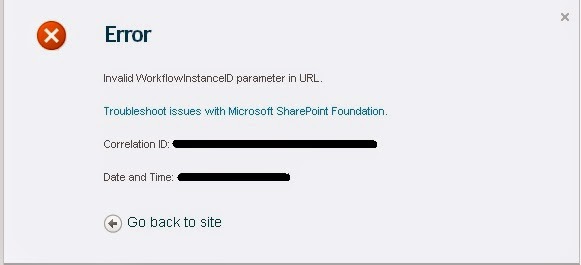
Invalid WorkflowInstanceID parameter in URL

When an end user clicked on an View the workflow history from an older email send as a part of a SharePoint Workflow approval, the user got the below error message.


This error might be encountered for the item(s) whose workflow completed and initiated long back.
This is because of AutoCleanupDaysproperty of Workflow. By default, the value is set to 60 days. After 60 days, if the workflow status is complete and initiated 60 days before, this workflow instance will be deleted. 
To delete all these old workflow instances, SharePoint runs a timer job named "Workflow Auto cleanup".

This deletion after 60 days is a default setting and is setup like that to avoid site performance issues

To retain these workflow instances

Browse to Central Administration -> Operations -> Timer Job definitions -> Disable Workflow Auto Cleanup task.


P.S.: Please note that this is not a Microsoft best practice to disable this timer job.

Monday, January 12, 2015

Documents are not visible with Read permissions on SharePoint Document Library

Issue Description

End user is not able to see a file in the document library. Users with Read Only permissions do not see the file. If permissions on this library is changed to anything else (Edit, Contribute, etc.) they can see the file. The permissions on the document are inherited from the library.

Resolution

In the VersioningSettings of the library, "Who should see draft items in this document library" was set to "Only users who can edit items�.

Change this to "Any user who can read items". 


Propellerads