Search This Blog

Thursday, October 31, 2013

[Server Name or IP Address],[Port] is an invalid or loopback access. Specify a valid server address.

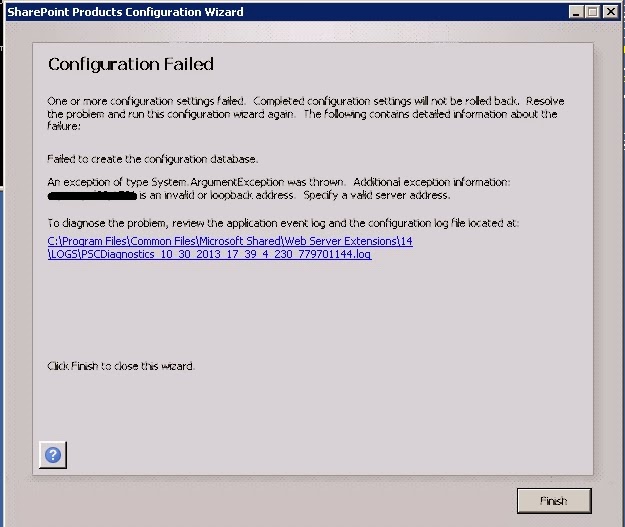
Recently I was installing SharePoint 2010 and the Configuration wizard failed giving me the below error

Failed to create the configuration database.
An exception of type System.ArgumentException was thrown. Additional exception information: [Server Name or IP Address], [Port] is an invalid or loopback access. Specify a valid server address.


We had a hardened environment where only a specific SQL port was made available.
On the Specify Configuration Database Settings screen, I entered the Database server in the below format (Database Server Name followed by a coma and the port number that was made available)

Database server: DATABASE-SERVERNAME,1581
Database name: SharePoint_Config_test


The fix

Enter in the below format(if there is only one instance of SQL in the database server) (append '\MSSQLSERVER' after the Database Server Name followed by the coma and the port number)

Database server: DATABASE-SERVERNAME\MSSQLSERVER,1581
Database name: SharePoint_Config_test


Tuesday, October 29, 2013

PivotTable Operation Failed: We cannot locate a server to load the workbook Data Model

While creating a demo with PowerPivot (Excel Services) on SharePoint 2013, I came across this error.

PivotTable Operation Failed: We cannot locate a server to load the workbook Data Model


Cause

The Analysis Services instance has not been configured in the Central Administration site or Analysis Services needs to be restarted

Resolution

Solution 1

You can also make sure that the steps displayed here are followed. In my case this was already done. But I am still listing it down.To work around this issue, configure the Excel Services service application on the SharePoint server. To do this, follow these steps:

1. In the Application Management section of the Central Administration home page, click Manage service applications.
2. On the Manage Service Applications page, click the Excel Services service application that you want to configure.
3. On the Manage Excel Services page, click Data Model.
4. Click Add Server.
5. In the Server Name box, type the name of the Analysis Services instance that you want to add.
6. Click Ok.

Solution 2

I restarted the SQL Server Analysis Services (POWERPIVOT) service on SQL Server Configuration Manager. That fixed the issue for me. If that didn�t help try an IISRESET.

SQL Server Configuration Manager - Connection to target machine could not be made in a timely fashion

Yesterday I had to stop the SQL Server Analysis Services (POWERPIVOT) service on SQL Server Configuration Manager (the idea was to restart the service). After this, I was getting the below error when I tried to open the SQL Server Configuration Manager.

---------------------------
SQL Server Configuration Manager
---------------------------
Connection to target machine could not be made in a timely fashion.
---------------------------
OK  
---------------------------


I waited for 30 minutes and the error was not going off. After 30 minutes, the status showed Stopped (Pending Changes) in SQL Server Configuration Manager. But when I opened Service page (services.msc) ,the same service SQL Server Analysis Services (POWERPIVOT) was still in Stopping state

Resolution

I restarted the server and things changed back to normal

Monday, October 28, 2013

Error 0x800700DF: The file size exceeds the limit allowed and cannot be saved.

Problem Description

I was trying to copy items from SharePoint Windows explorer view to my local drive and I got this error message. All files were pretty big. (More than 50 MB).
Copy Folder
An unexpected error is keeping you from copying the folder. If you continue to receive this error, you can use the error code to search for help with this problem.
Error 0x800700DF: The file size exceeds the limit allowed and cannot be saved.
<file name>
Try again Cancel

Cause

You receive a folder copy error message when you try to download a file that is larger than 50000000 bytes from a Web folder. I was using Windows 7 Operating System

Resolution

Follow this KB article and run the Fix IT by downloading and running the executable.

P.S.: When you run the Fix it wizard, you need to enter a FileSizeLimitInBytes (I changed it to 500MB by adding an additional zero) value that is larger than the size of the file that you want to download.

Thursday, October 24, 2013

SharePoint 2007 compatibility with SQLServer

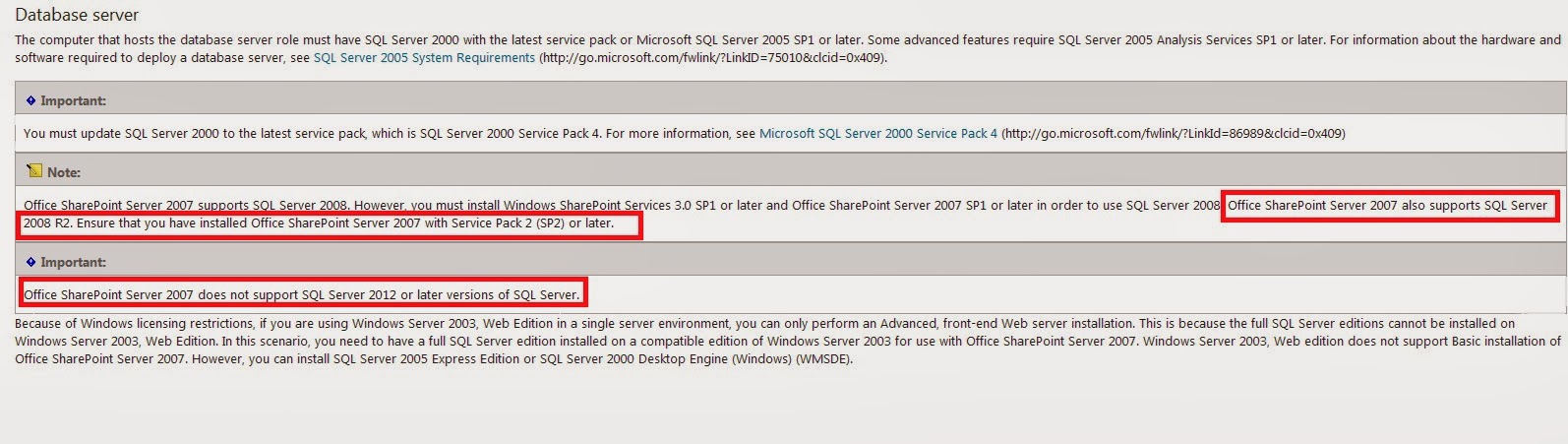
Office SharePoint Server 2007 is compatible with

- SQL Server 2000 with the latest service pack (which is SQL Server 2000 Service Pack 4)

- Microsoft SQL Server 2005 SP1 or later

Office SharePoint Server 2007 SP1 is compatible with

- SQL Server 2008

Office SharePoint Server 2007 SP2 is compatible with

- SQL Server 2008 R2

 But Office SharePoint Server 2007 is not compatible with SQL Server 2012

Key Excerpts

Office SharePoint Server 2007 also supports SQL Server 2008 R2. Ensure that you have installed Office SharePoint Server 2007 with Service Pack 2 (SP2) or later.


Office SharePoint Server 2007 does not support SQL Server 2012 or later versions of SQL Server.


Reference

Thursday, October 17, 2013

Maximum request length exceeded error while uploading files of size more than 50MB

Recently one of our SharePoint users came up with an issue that they were not able to upload files to SharePoint. It was giving him an access denied message. I checked for the permission for the user and the user had contribute permissions. The access denied message appeared only when the file size was more than 50 MB. The user was able to upload files of size lesser than 50 MB.

I checked in Central Administration ->Application Management-> Manage web application- >Select web application -> General Settings ->Maximum Upload Size .It was 200 MB

I checked the event viewer on the SharePoint server and saw the below error.

Request Url : 'https://servername/sites/sitename/_layouts/UploadEx.aspx?List={0CB029E1-5FA0-427D-A871-652E1748D8FD}&RootFolder=&IsDlg=1'
Maximum request length exceeded.
Exception Type: System.Web.HttpException
Exception Source: System.Web @ GetEntireRawContent

Resolution

I checked the web.config file of the associated web application and I noticed this.

<system.web>
<securityPolicy>
<trustLevel name="WSS_Medium" policyFile="C:\Program Files\Common Files\Microsoft Shared\Web Server Extensions\14\config\wss_mediumtrust.config"/>
<trustLevel name="WSS_Minimal" policyFile="C:\Program Files\Common Files\Microsoft Shared\Web Server Extensions\14\config\wss_minimaltrust.config"/>
</securityPolicy>
<httpHandlers/>
<customErrors mode="On"/>
<httpRuntime maxRequestLength="51200"/>


If you see this the maxRequestLengthparameter for httpRuntime was set to 50 MB. Please note that the value listed here is in kB. I changed this to a higher value (204800 to match the 200 MB in Central Administration).

<httpRuntime maxRequestLength="204800"/>

Tuesday, October 15, 2013

Error while restoring a site collection in the same content database

I wanted 2 sites to be the exact same. So I was performing a backup of a site collection http://sharepoint.fahad.com/sites/siteAand was trying to restore it as http://sharepoint.fahad.com/sites/siteB.


Backup-SPSite -Identity "http://sharepoint.fahad.com/sites/siteA" -Path "C:\ Backups\siteA.bak� -force -verbose

Restore-SPSite -Identity "http://sharepoint.fahad.com/sites/siteB" �Path "C:\ Backups\siteA.bak" -force -verbose

The restore operation failed and gave me the below error:

Restore-SPSite: The operation that you are attempting to perform cannot be completed successfully.  No content databases in the web application were available to store your site collection.  The existing content databases may have reached the maximum number of site collections, or be set to read-only, or be offline, or may already contain a copy of this site collection.  Create another content database for the Web application and then try the operation again.

Reason

Both these site collections were in the same web application and it had only one content database. Microsoft uses the source site collection GUIDs during the installation. Though you delete the site collection from the web application, it leaves the GUIDs behind, and if you try to restore same site collection (same GUID) into same web application and content database, it would throw an error.

To resolve the issue, new content database needs to be created in the web application to restore the site collection.

Resolution

1.Create a new content database WSS_Content_siteB from Central Administration for your web application where your site collection is going to reside. Reference


2.Restore-SPSite -Identity "http://sharepoint.fahad.com/sites/siteB" -Path "C:\ Backups\siteA.bak" -force -verbose -ContentDatabase WSS_Content_siteB
Propellerads